
How to Use the Reverse Tax Calculator
A complete walkthrough — from your first calculation to exporting professional invoices. Takes about two minutes to learn, saves hours of manual math.
Quick Start
Pick your state → Enter total price → Done. Results appear instantly. No button to click, no page to reload. Keep reading for the full walkthrough and advanced features.
▶ See It In Action (1-Minute Demo)
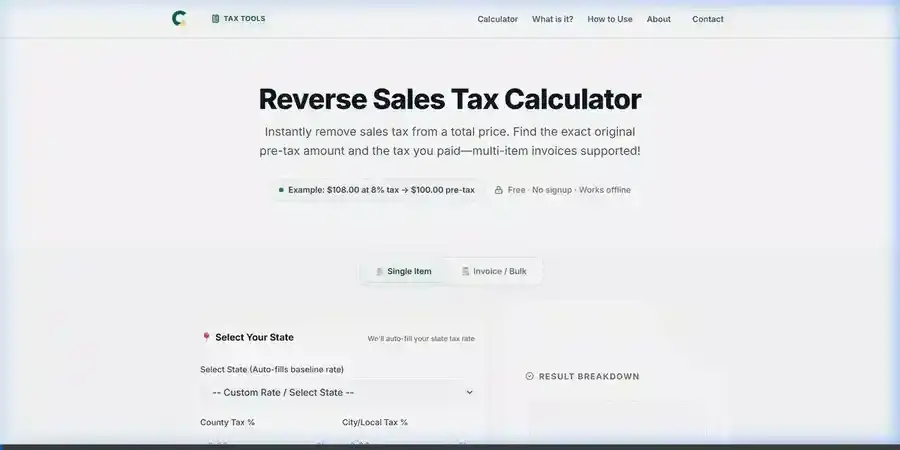
Watch how quickly you can calculate the original price from a total that includes tax.
1 Set Your Tax Rate
At the top of the calculator, you will see three ways to set your tax rate. You do not need to use all of them — pick whichever fits your situation:
Option A: State Dropdown
Select your state from the "Select State" dropdown. This auto-fills the baseline state tax rate. For example, picking "Texas" fills in 6.25%.
Option B: Add Local Taxes
After selecting a state, you can add your county tax and city/local tax using the separate fields. These are automatically summed into the total rate.
Option C: Manual Entry
If you already know your combined rate (for example, 8.875% in New York City), just type it directly into the "Total Tax Rate" field. This overrides the state dropdown.
Pro Tip: Check the "Remember my tax settings for next time" box below the tax inputs. This saves your preferred rate in your browser so you do not need to re-enter it every visit. The setting is stored locally on your device — we never see it.
2 Enter the Total Price
Scroll down to the "Enter details" section and type the total amount you paid — the number that includes tax — into the "Total Price (Includes Tax)" field.
A few things to note:
- Results are instant. There is no "Calculate" button. The results update in real-time as you type each digit. This is intentional — it makes it faster to experiment with different amounts.
- Use decimal points for cents. Type "108.50" for one hundred eight dollars and fifty cents. The calculator handles cents precisely.
- Dollar signs are automatically handled. You do not need to type a "$" — the field accepts plain numbers.
3 Read Your Results
Once you have entered a total price and a tax rate, the right-side panel and the sections below will light up with your results:
Original Price Before Tax
The big number at the top right — this is the pre-tax price. It is what the item actually costs before sales tax was added. This is typically the number that matters for bookkeeping, expense reports, and profit margin tracking.
Tax Amount
Shown just below the original price — this is the exact dollar amount of sales tax that was included in your total. For business owners, this is the amount you collected and need to remit to the state.
Visual Breakdown Bar
A color-coded horizontal bar that shows the proportion of your total that is pre-tax price versus tax. For a 7% tax rate, you will see the bar split roughly 93.5% green (pre-tax) and 6.5% gray (tax). Useful for visualizing how much of what you paid is actually going to the government.
Step-by-Step Calculation Explanation
Scroll below the calculator to see the full mathematical breakdown — converting the rate to decimal, applying the reverse formula, and computing the tax. This is especially handy if you are learning the math, verifying the logic, or need to document how a figure was derived.
4 Copy, Export, or Reset
Once you have your results, you have several options:
- Inline Copy: Click the small clipboard icon next to the Original Price to copy the full result breakdown to your clipboard. Paste it into an email, spreadsheet, or notes app.
- Copy All: Use the "Copy" button in the actions section for a formatted text summary of the entire calculation.
- Reset: Click "Reset Calculator" to clear all inputs and start fresh. This scrolls you back to the top automatically.
⚡ Advanced: Invoice / Bulk Mode
Need to process more than one item? This is where Invoice Mode shines. It was built specifically for business owners and accountants who deal with stacks of receipts. If you are unsure exactly how the underlying math separates the tax from the total, read our detailed guide explaining what reverse sales tax is and how the formula works.
How to Switch to Invoice Mode
- Look at the top of the calculator — you will see two tabs: "Single Item" and "Invoice / Bulk"
- Click "Invoice / Bulk" to switch modes
- The input area changes to a table format where you can add line items
Adding and Managing Items
In Invoice Mode, each row represents one item or line on your receipt/invoice:
- Item Name: Give each item a descriptive name (e.g., "Office Chair," "Printer Paper," "Monthly Software")
- Total Price: Enter the total amount for that item (including tax)
- Tax Rate: Each item can have its own tax rate, or it will inherit the global rate you set at the top. This is useful when processing items from different jurisdictions
- Add more items: Click "Add Item" to create a new row
- Remove items: Click the trash icon on any row (available when you have more than one item)
Invoice Results
As you add items, the right panel updates automatically with:
- Total Pre-Tax Price — the sum of all original prices across all items
- Total Tax Collected — the total tax across all items
- Grand Total — the sum of all totals (should match your invoice total)
Below the main results, you get a detailed breakdown table showing each item's name, pre-tax price, tax amount, and rate — all neatly laid out.
Exporting Your Invoice
In Invoice Mode, three export options appear:
📄 CSV Export
Downloads a .csv file that opens directly in Google Sheets, Excel, or any spreadsheet program. Includes all line items plus the grand totals row.
📊 Excel Export
Downloads an Excel-compatible XML file (.xls) with formatted headers, bold styling, and proper data types. Opens natively in Microsoft Excel without warnings.
🖨️ Print / PDF
Opens a clean, professionally formatted invoice in a new tab with Cashluom branding. Use your browser's Print function to save as PDF or send to a printer.
🛒 For Online Sellers: E-Commerce Profit Insight
If you sell on Amazon, eBay, Etsy, Shopify, or any platform that charges a payment processing fee, we built something specifically for you.
In single-item mode, check the "I'm an Online Seller" checkbox below the Tax Amount. This activates a bonus calculation that estimates your net profit after standard payment processing fees (2.9% + $0.30, the standard Stripe/PayPal rate).
For example, if a customer pays $108 total (including 8% tax), the calculator shows:
- Original price: $100.00
- Tax collected: $8.00 (you remit this to the state)
- Payment processing fee: $3.43 (2.9% × $108 + $0.30)
- Your estimated net profit: $96.57
This gives you a much more realistic picture of what you actually pocket from each sale. Most calculators do not account for processing fees, so this feature helps bridge the gap between the sticker price and your real margin.
📋 Calculation History & Saved Settings
The calculator automatically saves your last 6 single-item calculations in the "Recent Calculations" section at the bottom of the page. Here is what you need to know about this feature:
- Clickable entries: Click any history entry to instantly reload that calculation — the total price and tax rate are filled back in and the results update immediately
- Stored locally: History is saved in your browser's Local Storage. It never leaves your device. We cannot see it
- Clear anytime: Click "Clear History" to remove all saved calculations
- Remembered tax rate: If you check "Remember my tax settings for next time," your preferred state, county, city, and total rate are pre-filled the next time you visit
📊 Quick Reference Table
At the bottom of the calculator page, you will find an auto-generated reference table showing pre-tax prices for common totals ($10, $50, $100, $200, $500, $1,000) across popular tax rates (5%, 7%, 8%, 10%). This is handy for quick mental checks without needing to type anything into the calculator. If your receipt total or tax rate is close to one of these values, a quick glance at the table confirms whether your calculation is in the right ballpark.
Pro Tips for Accurate Results
Always verify your combined rate. The state dropdown gives you the state-level rate only. If your city or county adds local tax, you need to include that too. Check a recent local receipt — the combined rate is usually printed on it.
Use the step-by-step section for documentation. If you need to show a client, your boss, or an auditor how you arrived at a specific number, the calculation breakdown provides the exact work. Screenshot it or print the page.
Cross-check large amounts. For invoices above $1,000, verify the result by working the math backwards: multiply the pre-tax price by the tax rate. The resulting tax amount plus the pre-tax price should equal your original total price exactly.
Bookmark the calculator. Since there is no account system, bookmarking the page is the fastest way to get back to it. Combined with the "Remember my tax settings" checkbox, it is essentially a one-click tax calculator tailored to your location.
Common Questions
Do I need to create an account? ▼
No. The calculator is completely free with no sign-up, no login, and no account. Just open the page and calculate. We do not even ask for your email address. The only data stored is your recent calculation history and saved tax rate, both of which live entirely in your browser.
Can I process multiple items at once? ▼
Yes, absolutely. Switch to Invoice/Bulk mode and add as many line items as you need. Each item can have its own name, total price, and even a custom tax rate. The calculator shows individual breakdowns and running grand totals. When you are done, export the whole thing as CSV, Excel, or a printable PDF invoice.
Is my financial data saved or sent anywhere? ▼
No. Every calculation runs in your browser using JavaScript. The numbers you type never reach our servers. Your saved tax rate and recent history are stored in your browser's Local Storage — that is a small amount of data that stays on your device and is completely under your control. We literally cannot access it from our end.
What export formats are available? ▼
In Invoice Mode, you get three export options: CSV (opens in any spreadsheet program), Excel XML (opens natively in Microsoft Excel with formatting intact), and Print/PDF (opens a professionally formatted invoice page you can print or save as PDF from your browser). All file generation happens in your browser — nothing goes through our server.
How do I know my tax rate is correct? ▼
The simplest way: look at a recent local receipt. Most receipts print the combined tax rate somewhere near the bottom. You can also check your state's Department of Revenue website, or search "[your city] + [your state] sales tax rate 2026" for the current combined rate. The state dropdown in our calculator gives the baseline state rate, but county and city taxes can add 1-5% on top of that depending on where you are.
Ready to Calculate?
It takes about 5 seconds to get your first result. No sign-up, no download, no nonsense.
Open the Calculator